This guide covers how to set up reports in the DPG Ad Manager, including advanced formatting and delivering data directly to your cloud storage.

1. Basic Setup & Scheduling
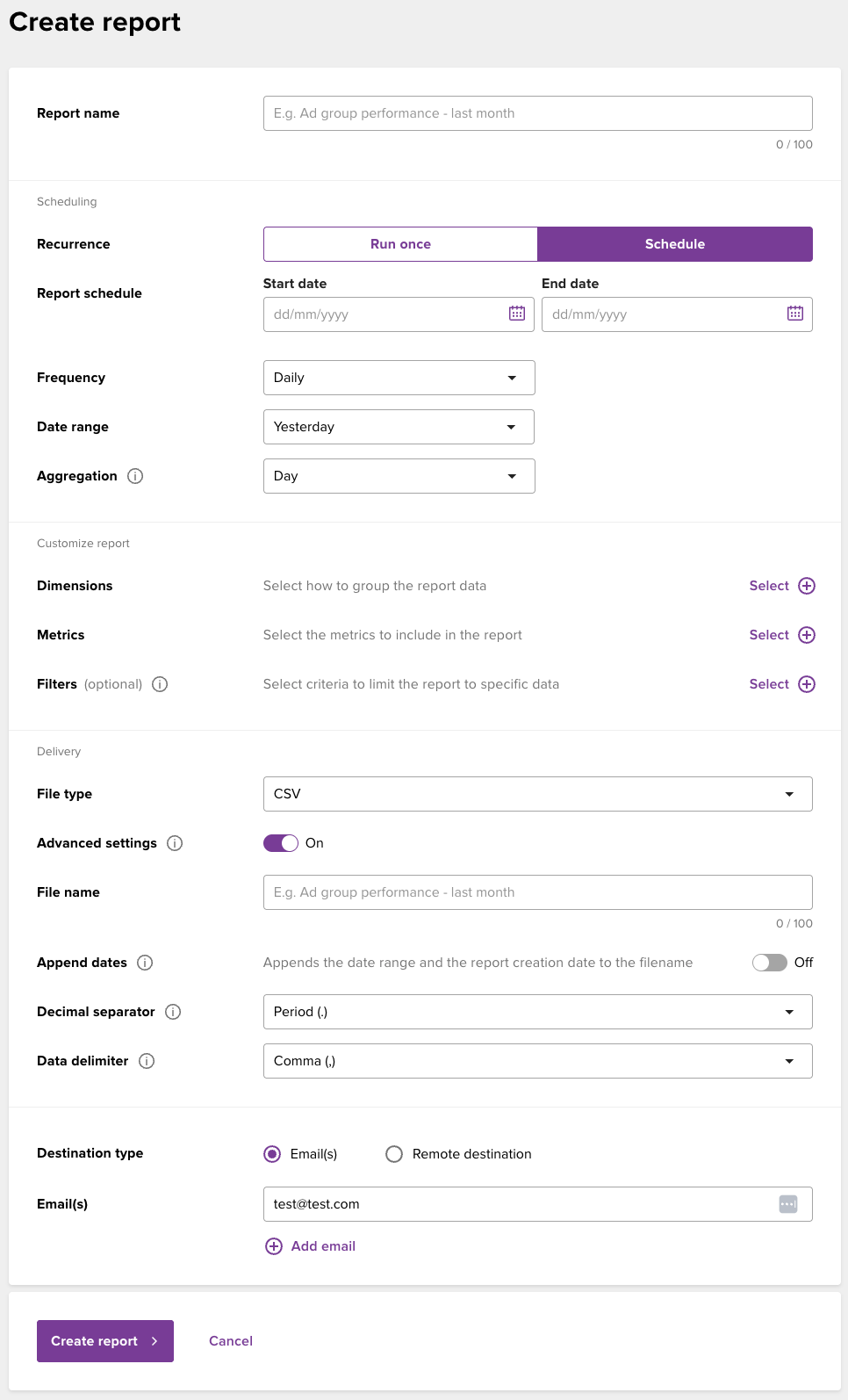
Report Name: Enter a unique name for your report.
Recurrence: Choose Run once for an immediate report or Schedule for recurring delivery.
Schedule Details: If scheduling, set your Start / End dates, Frequency (e.g., Daily), and the specific Date range (e.g., Yesterday) you want to capture.
2. Customizing Report Content
You must select at least one dimension and one metric to generate a report:
Dimensions: Select how to group your data (e.g., by Campaign or Creative).
Metrics: Choose the specific data points to measure (e.g., Impressions, Clicks).
Filters (Optional): Limit the report to specific data sets.
3. Advanced File Settings
Enable Advanced settings to customize the file structure:
File name: Set a specific name for the exported file.
Append dates: Toggle this "On" to automatically add the date range and creation date to the filename. This prevents that files previously send to your bucket will be overwritten. Instead every time a new report is executed a new file will be created.
Formatting: Choose your preferred Decimal separator (Period or Comma) and Data delimiter (e.g., Comma) to ensure the file works perfectly with your local software.
4. Setting Up a Remote Destination
Instead of email, you can deliver reports directly to your cloud storage by selecting Remote destination. Click + Add new to create a destination:
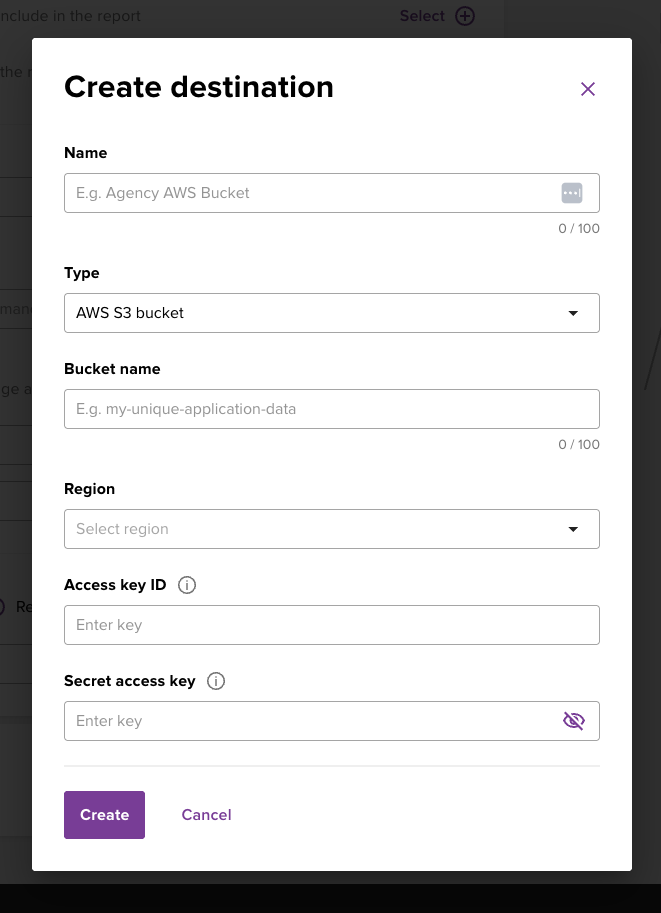
Option A: AWS S3 Bucket
Type: Select "AWS S3 bucket".
Bucket details: Provide your Bucket name and select the correct Region.
Security: Enter your Access key ID and Secret access key to authorize the connection.
Option B: Google Cloud Storage Bucket
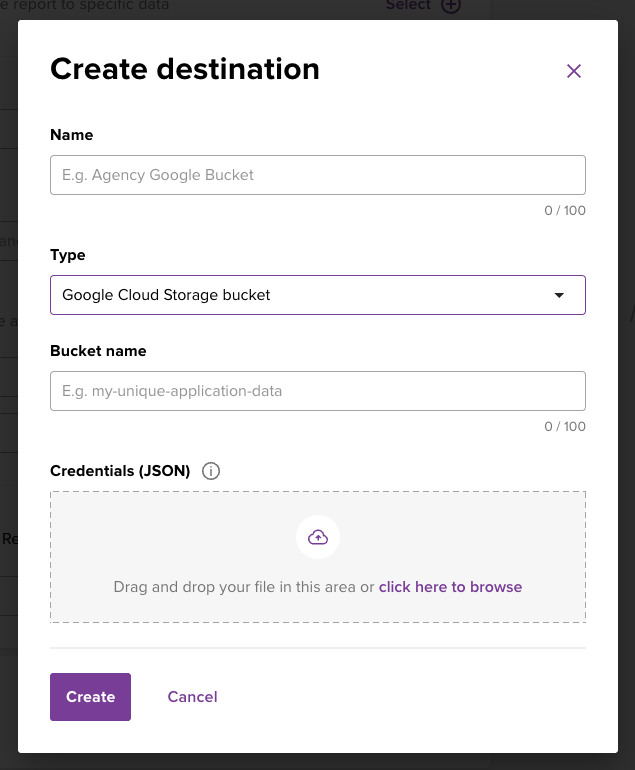
Type: Select "Google Cloud Storage bucket".
Bucket details: Enter your Bucket name.
Credentials: Upload your Credentials (JSON) file by dragging and dropping it into the upload area.
5. Finalizing
After configuring your destination, click Create destination. Finally, back on the main screen, click Create report to start the process.
Was this article helpful?
That’s Great!
Thank you for your feedback
Sorry! We couldn't be helpful
Thank you for your feedback
Feedback sent
We appreciate your effort and will try to fix the article