Requirements
Assumes GTM (web), GA4 (for its measurement protocol) and GTM (server) have been implemented.
Install the Ad Manager GTM (server) template
In your server-side GTM you can import the GTM Template.
- Open your server side GTM and go to “Templates”
- Click “New” => click the three dots in the right upper corner => click “Import”
- Select the GTM template downloaded from this article.
- Save the template as “DPG Conversion Measurement”.
Then create a new tag.
- Click “New tag”
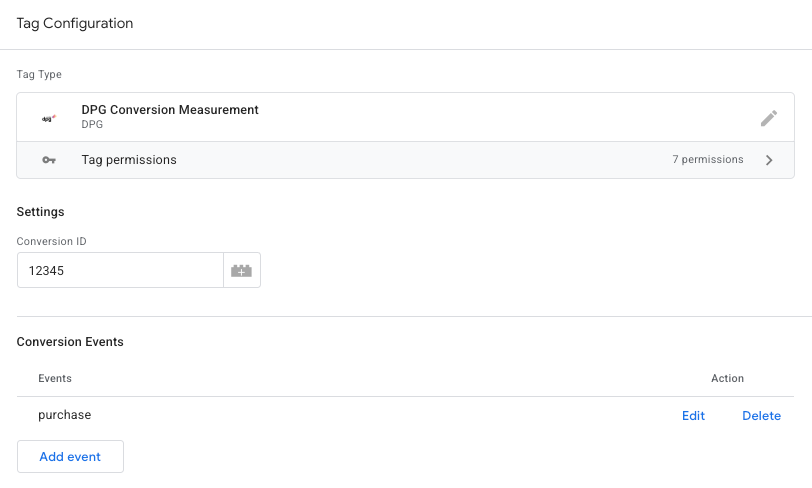
- Under “Custom” select “DPG Conversion Measurement”.
- Give the tag a name - e.g. “DPG - Conversion - Purchase”
- Enter the Conversion ID.
- Specify for which events the conversion pixel should be triggered. These are the events that should be visible in the GTM (server) eventData. If your conversion category in Ad Manager is Add To Cart but in GTM it's add_to_cart you should enter add_to_cart.
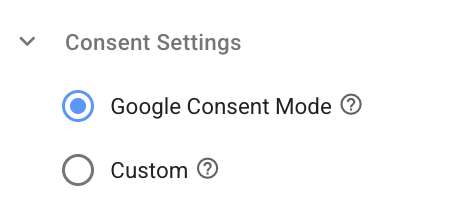
- Consent - By default the template uses consent mode, but it's also possible to customize how consent is used. Click "Consent Settings" and change it to "Custom". In this case you need to make sure the tag is only triggered when the user has consented to marketing purposes.
If consent mode is implemented correctly you should see x-ga-cs wwith "G110" or "G111" as value.
- Trigger - Add a trigger that covers events like above. A page_view or consent_update event is require to retrieve the click token and store it in a cookie. Using a generic GA4 events trigger is easiest, because all GA4 events will be passed to the conversion tag. Keep in mind that your page_view event should be fired AFTER a user has consented. In this case the client name is "GA4" then enter should contain or equals “GA4”. If your client uses a different name, use that.
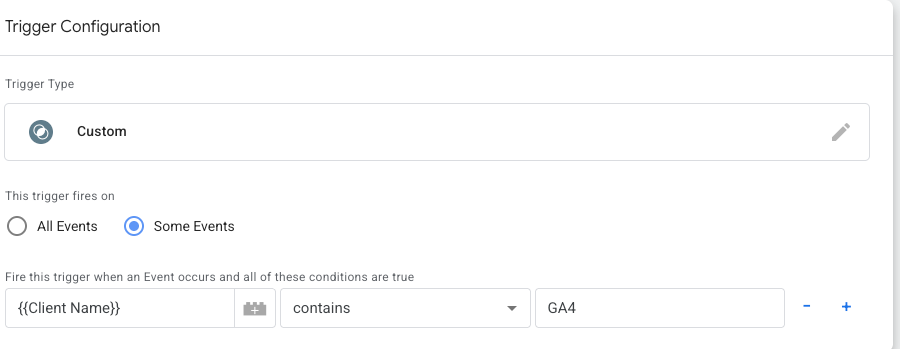
IMPORTANT: When you use a custom trigger, make sure you ALWAYS include a page view or consent update event so the click token can be saved in a cookie. You do not need to add page_view or consent_update in the GTM template under Conversion Events. The template will use any event to check for the token.
To verify that your click token is properly set:
- In Ad Manager the landing page should be like https://my_url.com?token=${SSP_DATA}. If you already have (UTM) parameters in your URL then you should add &token=${SSP_DATA}
- To test it on your website: open the URL and add ?token=123 or &token=123
- Provide consent
- Open developer toolbar (right click => inspect element),
- click "Application"
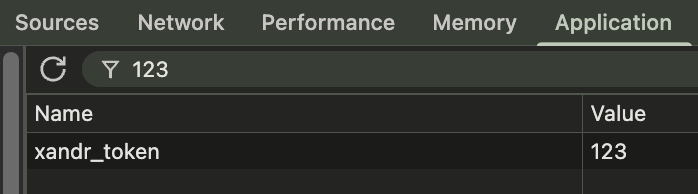
- Click on "Cookies" and select your domain.
- Then you should see a cookie "xandr_token" with value 123.
- If you want to see a valid response in your GTM console and not a https status 400, you can use:
token=nym1CJjYiJ3oq6LkMxACGIHey7vM0vGDRyIJMTAuMS4xMi42KAE.
You'll see a 302 http status instead.
Note: the dot at the end should be included.
Was this article helpful?
That’s Great!
Thank you for your feedback
Sorry! We couldn't be helpful
Thank you for your feedback
Feedback sent
We appreciate your effort and will try to fix the article